
Player Articles
Self game check-in
How to Self Check In at a Game Site
You can record your attendance at a participating game site by scanning the site’s self check-in QR code from your Airsoft Defence dashboard.
You must be physically present at the game site when completing a self check-in.
Step 1: Open Your Dashboard
Log in to your Airsoft Defence account and open your player dashboard.
Select Self Check-In at Game Site.

Step 2: Allow Camera Access
Your browser may ask for permission to use your device’s camera.
Select Allow so Airsoft Defence can scan the game site’s QR code. Camera access is used for scanning the code.
If you previously blocked camera access, you may need to enable it through your browser or device settings before continuing.
Step 3: Scan the Game Site’s QR Code
Find the Airsoft Defence self check-in poster displayed at the game site.
Point your device’s camera at the QR code and hold it steady until the code is recognised.
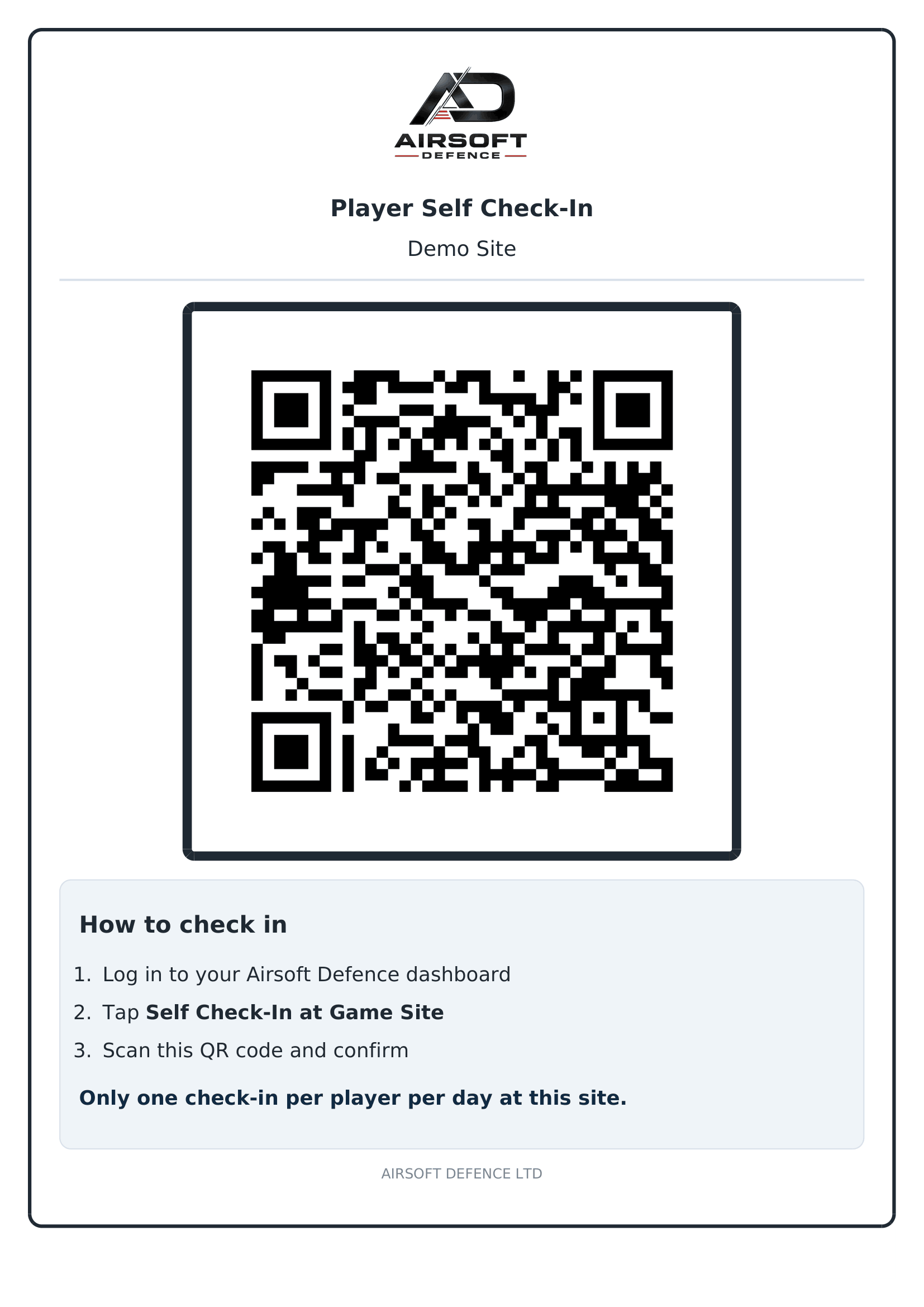
Make sure the entire QR code is visible on screen. Moving closer, improving the lighting or cleaning your camera lens may help if the code does not scan immediately.
Step 4: Check the Site Details
After the QR code has been scanned, a confirmation window will display the game site’s details.
Check the site name, address and postcode carefully. Make sure they match the site you are attending before confirming your check-in.
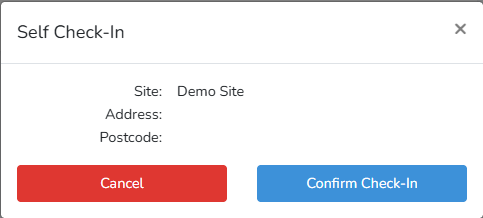
If the details are incorrect, select Cancel and speak to a member of staff at the game site.
Step 5: Confirm Your Check-In
Once you are satisfied that the displayed details are correct, select Confirm Check-In.
Your attendance will then be recorded against your Airsoft Defence account.
Only one self check-in can be recorded per player, per day, at the same game site.
If You Cannot Check In
If you experience a problem:
Confirm that you are logged in to the correct Airsoft Defence account.
Check that camera access has been allowed.
Make sure you are scanning the current Airsoft Defence poster for the site.
Ensure the QR code is well lit and fully visible to the camera.
Refresh the dashboard and try again.
Ask a member of the game site’s staff for assistance if the problem continues.
Do not scan a photograph or remotely shared copy of a site’s QR code. Self check-in is intended to record your attendance while you are physically present at the game site.