Sites Articles
How to verify a player
How to Verify a Player’s Details
Authorised game-site users can verify a player’s identity and account details through the Airsoft Defence dashboard. The player and their original government-issued photo ID should be present throughout this process.
Only confirm a validation when you are satisfied that the account belongs to the person being checked and that their details are accurate.
Step 1: Select Validate Player
Log in to your site dashboard and select Validate Player.

Step 2: Find the Player
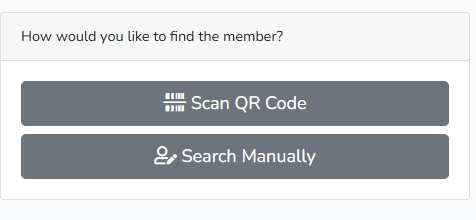
Choose how you would like to find the player:
Select Scan QR Code to scan the QR code presented by the player.
Select Search Manually to locate their account using their registered details.
Searching Manually
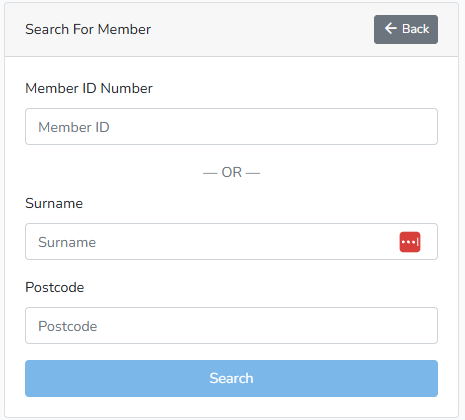
You can search using either:
The player’s Member ID Number on its own.
The player’s surname and postcode together.
Enter the required information and select Search.
Step 3: Check Whether Validation Is Required
Once the correct account has loaded, review the player’s profile.
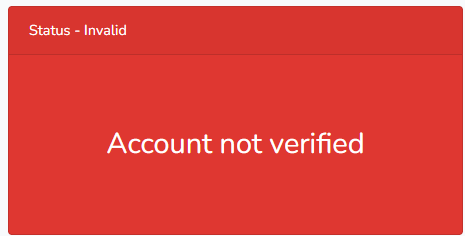
An account requiring verification will display Account not verified.
Before continuing, check that you have opened the correct player’s account.
Check the Player’s Payment Status
A player must have a valid membership payment before their account can be validated.
If there is no active payment, validation will be locked and a warning will appear on the profile.
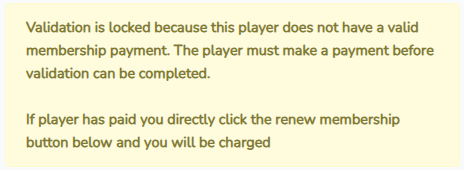
Do not continue with the validation until the payment requirement has been resolved. Follow the payment or membership renewal options displayed on the player’s profile where appropriate.
Step 4: Start the Validation
When the player has a valid payment, select Start Validation.

A validation window will guide you through each item that must be checked.
Step 5: Check Each Detail
At every stage, compare the information shown with the player and their original government-issued photo ID.
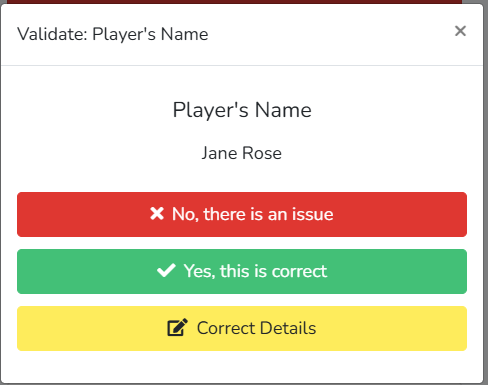
For each item, select the appropriate option:
Yes, this is correct when the information has been checked and is accurate.
Correct Details when the information is incorrect but can be updated using the verified information provided.
No, there is an issue when the information cannot be confirmed or the validation should not continue.
Do not confirm information without checking it carefully.
Checking the Profile Photograph
Compare the player’s profile photograph with the person standing in front of you and the photograph on their ID.
The profile photograph must:
Clearly show the player’s face.
Be recent enough to identify them confidently.
Be clear and well lit.
Show the player facing the camera.
Show their eyes open and unobstructed.
Be taken without sunglasses, a hat or a face covering.
Be close enough for their facial features to be clearly visible.
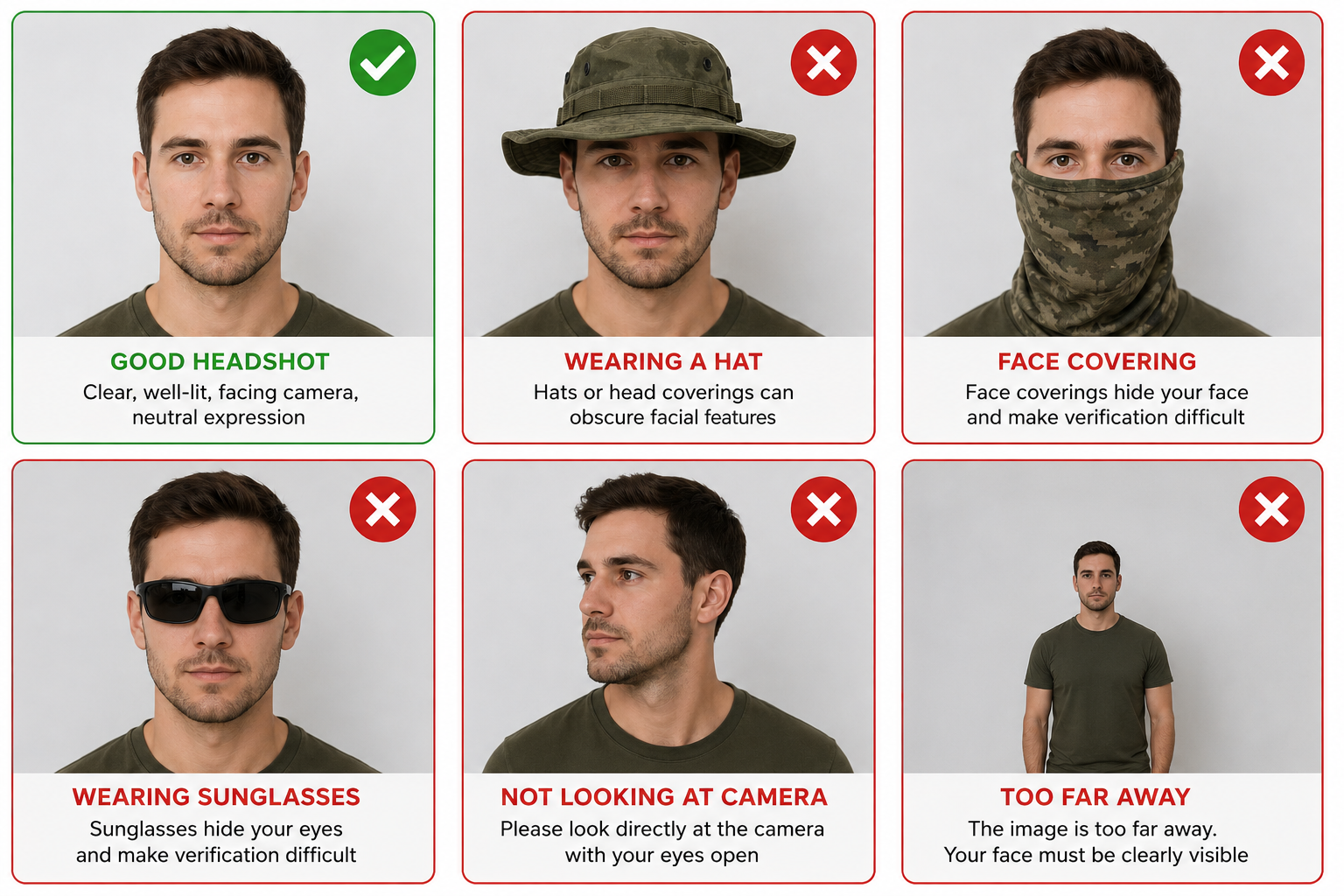
Do not approve the photograph if it does not clearly identify the player or if it appears to show somebody else.
Checking the Player’s ID
Ask the player to present their original, physical government-issued photo ID, such as a passport or driving licence.
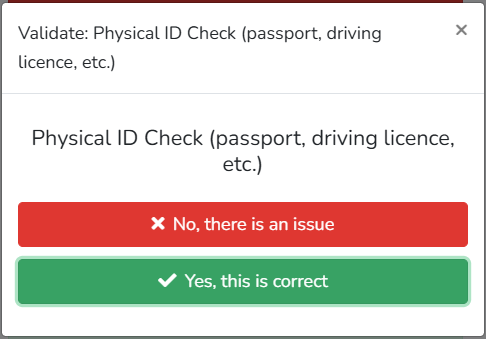
Check that:
The photograph on the ID matches the player.
The player’s name matches the account.
Any other identity details displayed in the validation match the ID.
The document appears genuine and has not been altered.
The document is valid and has not expired.
Confirm contact information, such as the player’s email address and telephone number, directly with the player where it is not shown on their ID.
Select Yes, this is correct only when you are satisfied with the check. Select No, there is an issue if the ID cannot be accepted or the person cannot be confidently matched to the account.
Step 6: Review the Validation Summary
After completing every stage, a summary will show the outcome of each check.
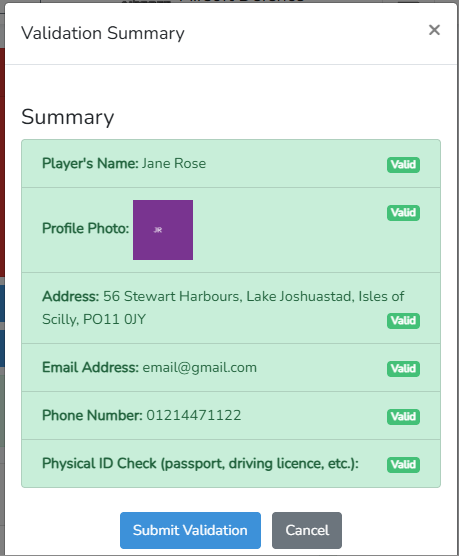
Review the summary carefully. Make sure every item has been marked correctly before selecting Submit Validation.
Submitting the validation confirms that your site has completed the checks shown in the summary.
Step 7: Check the Updated Status
After submission, return to the player’s profile and check their defence status.
If the player has met the required game attendance and all other account requirements, the profile should display Defence Is Valid & Active.
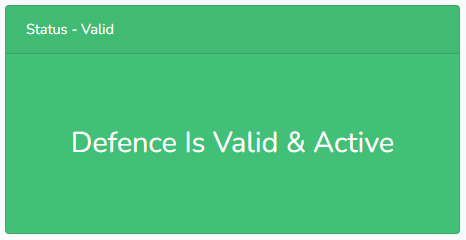
If the player has not yet completed enough qualifying games, their identity validation may be complete without their defence becoming valid and active. Their status will update once all applicable requirements have been met.
The system will automatically record that a payment is due to the game site for completing the player validation. No separate payment claim needs to be created for the action.
When Not to Complete a Validation
Do not submit the validation if:
The player is not present.
The profile belongs to somebody else.
The player cannot provide acceptable original government-issued photo ID.
The ID photograph does not match the player.
The account information and ID do not match.
The profile photograph does not meet the required standard.
You suspect that an ID or account has been altered or used fraudulently.
You cannot confidently complete any required check.
If a problem cannot be corrected during the validation, stop the process and direct the player to Airsoft Defence support.